Your CSV is clean before it reaches the import screen
Same value, five spellings. Dates in three formats. Column names that match nothing in your CRM. Asphorem maps, normalises, and standardises all of it, and saves the mapping so the next file takes seconds.
Your file rows are never uploaded. AI matching uses unique column values only.
See exactly what gets imported before it does.
The mapping table gives you a full view of your file: every column, sample values from your data, and where each one goes in the output. Drag to reorder, toggle columns on or off, split fields, or add synthetic columns in one place.
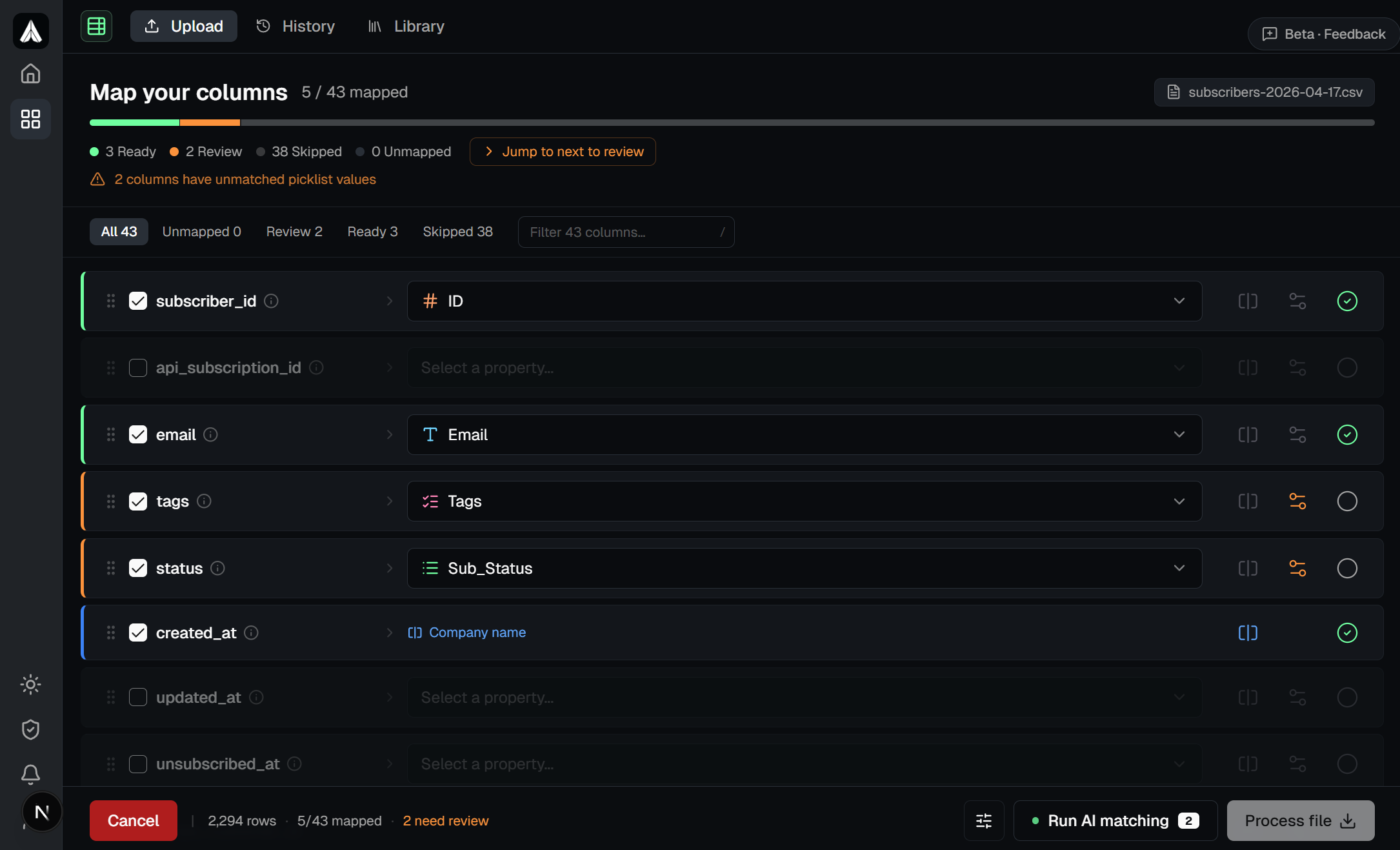
Map once. Reuse on every new file.
Configure the mapping once for a given source format and save it as a named preset. When the next weekly export or monthly data drop arrives, select it from your history and skip straight to download. If the source structure has changed, Asphorem flags the differences so nothing slips through unnoticed.
The more files you process, the faster each one gets. Your mapping library and property definitions carry over to every new file automatically.
What "dirty" data actually looks like
A dirty CSV isn't broken. It's just inconsistent. The same information is expressed in a dozen different ways, and every downstream tool rejects it.
How it works
Four steps from raw export to clean file. Your rows stay in your browser the whole time. Only the unique picklist values are sent to the AI.
Drop your CSV and see what you're dealing with
Asphorem reads the headers and shows you a breakdown of unique values per column. You immediately see which columns have inconsistent values, which dates are mixed format, and which column names don't match your target schema.
Define your target schema
Tell Asphorem what each column should be called and what type it holds: Text, Number, Date, Picklist, or Multi-picklist. Split one column into multiple outputs, add a synthetic column with a constant value, and save the whole setup as a reusable preset.
AI resolves the inconsistencies
For each picklist column, the AI maps every cell value to the correct canonical form, catching typos, language variants, abbreviations, and capitalisation differences in one pass. Dates are unified to ISO format automatically. Don't want to use AI? Switch to local matching and nothing leaves your machine.
Review every mapping before you export
Every column mapping and value substitution is shown before the file is generated. Fix anything the AI got wrong with a single click. Your corrections are saved and applied automatically the next time the same file format comes in.
The AI that actually understands your data.
Not just fuzzy search. Asphorem's AI matches picklist values semantically, across typos, abbreviations, different languages, and numeric range formats.
Built to get faster every time you use it.
Every file you process builds your reusable library of properties and mappings. The more you use Asphorem, the less work each task requires.
AI value matching
What used to mean hours of find & replace across every column is done in seconds. The AI resolves typos, language variants, and date formats in one pass. For sensitive files, disable AI and run normalisation locally. Nothing leaves your browser either way.
Properties library
Define reusable properties with types: Text, Number, Date, Picklist. Set allowed values once. Build your library over time, reuse it across every file.
Presets
Group properties into presets for each use case: "HubSpot Contact Import", "Shopify Product Export". Pre-fill column suggestions on every new file automatically.
One-click reprocessing
Save a column-to-property mapping as a named template. Next time you receive the same file format, select it and skip straight to download. No re-mapping required. The tool alerts you if the source structure has changed.
Session persistence
Mapping work is auto-saved in your browser as you go. Close the tab by accident, re-upload the same file, and pick up exactly where you left off. Your file rows are never sent to a server.
Visual column mapping
Every source column is listed with its name, type, and sample values. Assign it, mark it as pass-through with Keep, or disable it entirely. Bulk-toggle blocks of columns, drag rows to reorder, and see the exact output structure before generating the file.
Split & synthetic columns
Break one source column into multiple outputs using any separator. A live preview shows each segment before you commit. Or add columns that don't exist in the source file and fill them with a constant value on every row, like a record source tag or a default status.
Output control
Choose comma, semicolon, or tab as your output delimiter. Strip blank rows and remove duplicates before generating the file. Settings are saved per preset, so your output format stays consistent without re-configuring each time.
Date format handling
Tell Asphorem whether your file uses DD/MM/YYYY or MM/DD/YYYY before uploading, and every date column is normalised automatically. No more ambiguous "01/02/2024" import errors caused by regional format differences.
When dirty data becomes your problem
Inconsistent values don't just break imports. They break merges, reports, and anything downstream that depends on clean field values.
Merging exports from multiple sources
Two CRMs, a spreadsheet, and a data provider, each with different column names and value conventions. If you merge them without normalising first, you get duplicate records, broken groupings, and values that will never match.
Sending data to a client
A client gave you a column schema and a list of allowed picklist values. If what you send doesn't match exactly, they'll send it back. Clean it to their spec before you deliver it.
Reporting that actually adds up
When "Technology", "tech", and "Technologie" are three separate values in your BI tool, your segment counts are wrong. Standardise the source data and the numbers start reflecting what actually happened.
CRM imports that don't fail halfway through
HubSpot, Salesforce, and Pipedrive all validate picklist values on import. One unrecognised value and the row either errors or imports blank. Fix the values before you upload instead of cleaning up after.
Common questions about the CSV Normalizer.
Do I need to re-map columns every time I upload the same file?
No. Save the column mapping after your first run. On every subsequent upload from the same source, select the saved mapping and skip straight to download.
If the source structure has changed (a new column, a renamed header, a removed field), Asphorem flags the mismatch before processing so you can review it and decide how to handle it.
What happens with typos, capitalisation, or values in different languages?
The AI matching step handles fuzzy matches across spelling, capitalisation, abbreviations, and language. Frnace resolves to France, Rouge resolves to Red, tech resolves to Technology.
You review every suggested mapping before it's applied, and corrections are saved into your reusable mapping for next time.
How does Asphorem handle EU vs US date formats?
Tell Asphorem whether your file uses DD/MM/YYYY or MM/DD/YYYY before uploading. Every date column is then normalised consistently, with no ambiguity on values like 01/02/2024. If the detected sample values conflict with your chosen format, the column is flagged with a warning.
What file size and row count can I upload?
Files up to 50 MB are supported. The free plan handles up to 5,000 rows per file; Pro extends this to 200,000 rows.
Can I use the CSV Normalizer without the AI?
Yes. You can disable AI matching entirely and map values manually, or use local matching which runs fully in your browser with no external requests. This is useful for sensitive files where you don't want any data leaving your machine.
What CRMs and import targets does it support?
Anything that accepts a CSV file. HubSpot, Salesforce, Pipedrive, Zoho, Microsoft Dynamics, Copper, Close, Shopify, Klaviyo, Mailchimp, ActiveCampaign. If it has a CSV importer, the CSV Normalizer can prepare files for it.
What stays in your browser, what doesn't
Your CSV file is loaded and processed locally. No rows are ever transmitted to our servers or stored anywhere. The only things we store are your account details and the mapping configurations you create.
When you use the AI matching feature, the unique values from the columns you choose to map are sent to the AI for analysis. These are deduplicated picklist values (the distinct values found in a "Status" column): not full rows, not names, not IDs, not any other field you haven't explicitly chosen to map.
If your files contain sensitive picklist values you'd prefer not to share, you can always map those columns manually instead.
Upload a CSV and see what it looks like clean
Free plan included. No credit card required.
Start for free →